What this guide covers
Diagnose a browser music game that remains on its cover, loader, or blank stage. The goal is to help players make a useful choice or solve a real gameplay problem without requiring music-production experience.
A practical approach
- Confirm the page itself has loaded.
- Press Play once and wait for large assets.
- Disable strict content blocking for this site only if appropriate.
- Try a current browser.
- Report the exact game and device if it still fails.
What to check before continuing
Where to go next
Use the related games and guides below to continue with a more specific version, device, or mixing goal.
Frequently asked questions
Does this advice work in every music-mixing game?
The core listening and layering method is widely applicable, while exact buttons and special modes can differ by game.
Do I need headphones?
They are optional, but headphones make quiet effects, bass parts, and stereo details easier to separate.
Should I fill every character slot?
No. A smaller arrangement often sounds clearer because every loop has more room.
Can I use these steps on mobile?
Yes. Use touch controls and landscape orientation when the game board needs additional horizontal space.
Use the loading screen to choose the next check
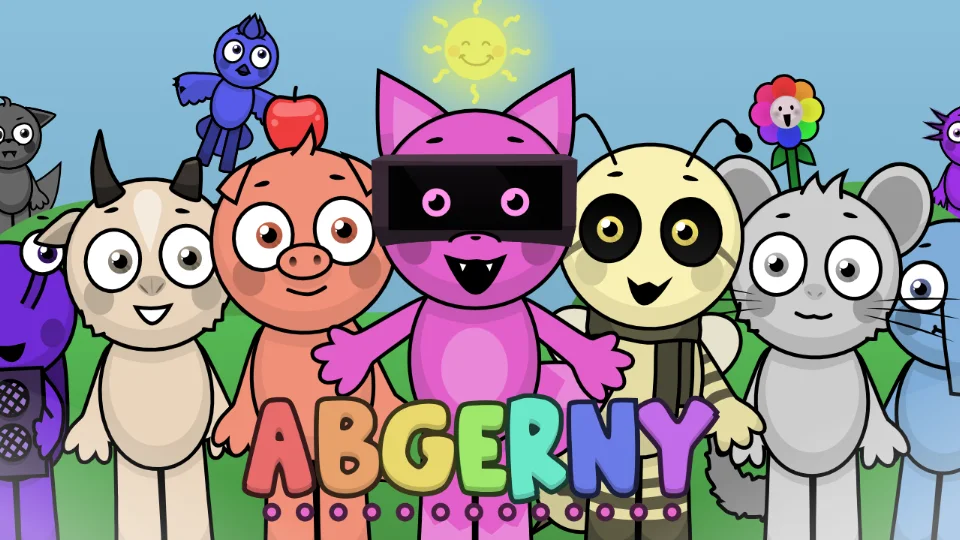
If the page itself appears but the game area stays blank, test whether the Play button responds and whether the browser reports blocked content. If a cover image and loading message appear, wait through one normal loading attempt before refreshing; large browser games can need additional time on a slow connection. If the whole page fails, the issue is outside the embedded game and should be diagnosed as a site or network problem.
Try one change at a time: reload, open a private window, temporarily test without an aggressive content blocker, and then try another current browser. A private window working normally points toward stored data or an extension. Another browser failing in the same way points more strongly toward the network, the game host, or the game build. Avoid clearing all browser data until the narrower checks show that stored data is likely involved.
Use a four-step loading diagnosis
First confirm that the surrounding page loads and that Play responds. Second, wait through one initial asset download without repeatedly refreshing. Third, retry in a private window to remove extension and stored-setting effects. Fourth, compare another current browser or stable network. Stop when one change produces a clear result so the cause remains identifiable.
If the frame loads but animation freezes, reduce the active roster and close another heavy tab; memory or graphics pressure is more likely than a missing page. If navigation works but the frame remains empty, note any visible message. If every page on the site fails, the issue is broader than one game and should be reported that way.
Provide the exact URL, game name, device, operating system, browser version, connection type, time spent waiting, visible error, and results from private mode or a second browser. Do not clear all browsing data or change several settings at once before recording a baseline. Never send passwords, account cookies, or unrelated diagnostic archives.